Understanding your gas consumption is a crucial step towards managing household expenses and promoting energy efficiency. Modern gas smart meters offer a convenient way to monitor your usage, often sending readings directly to your supplier. However, knowing how to read the display yourself provides valuable insight, allowing you to cross-reference bills, track daily consumption, and identify potential savings. This guide will walk you through the process, empowering you to take control of your gas usage data with confidence and ease.
Navigating Your Gas Smart Meter Display
Gas smart meters come in various models, but most share common display characteristics. Knowing where to look and what to press is key to accessing your consumption data. Whether you’re using an in-home display or checking the meter directly, the information you need is readily available.
Reading via Your In-Home Display (IHD)
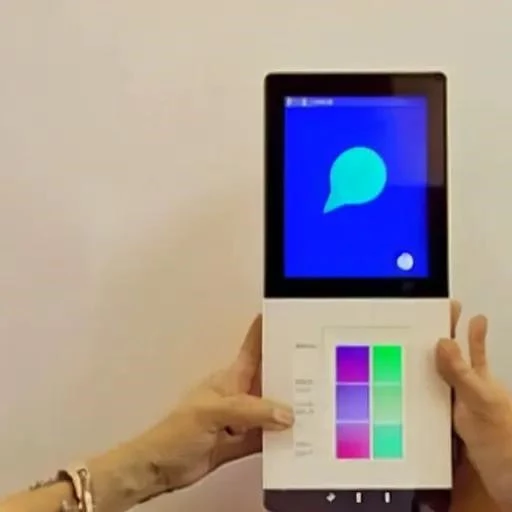
Many smart meters are paired with an In-Home Display (IHD), a small device that shows your energy usage in real-time. This is often the easiest way to check your current gas consumption. Your IHD typically displays your usage in pounds and pence, as well as in energy units like kilowatt-hours (kWh). To view your gas reading, you might need to press a ‘Gas’ button or navigate through a menu to switch from electricity to gas data. The IHD provides an immediate snapshot of your energy habits, making it simple to see how different activities impact your usage.
Direct Meter Reading: The Main Unit
Sometimes, you’ll need to read the gas smart meter unit itself. This is particularly useful if your IHD isn’t working, or if you simply prefer to verify the reading directly. Smart meters often have a digital display that shows your gas consumption in cubic meters (m³).
Step-by-Step Process for Obtaining Your Gas Reading
Reading your gas smart meter directly is a straightforward process once you know the steps. Follow these instructions to accurately retrieve your current gas usage data:
- Locate Your Gas Meter: Your gas meter is typically found outdoors in a meter box, often near the front door, or sometimes indoors under the stairs or in a utility cupboard. Ensure you have good lighting and safe access.
- Identify the Display Screen and Buttons: Most smart meters have a digital screen and one or more buttons. Common button labels include ‘A’, ‘B’, ‘C’, ‘Display’, or simple arrow keys.
- Wake Up the Display: If the screen is blank, press any button (often ‘A’ or ‘Display’) to activate it. The screen may show various information cycles.
- Navigate to the Gas Reading: You’ll usually need to cycle through the display options until you find the screen showing your gas reading. Look for terms like “Meter Reading,” “Total,” “Read,” or “Volume;” This reading will be a series of numbers, usually followed by “m³” or “cubic meters.”
- Record the Reading: Note down all the numbers shown before any decimal point. Smart meters typically record whole units, and any numbers after a decimal point are usually not required for billing purposes. For example, if it reads 12345.678 m³, your reading is 12345.
- Verify Units: Confirm that the reading is indeed for gas (m³). Some meters might display both gas and electricity data.
The process might vary slightly depending on your meter’s manufacturer (e.g., Secure, Elster, Landis+Gyr). If you’re unsure, consulting your energy provider’s website or your meter’s manual can provide model-specific instructions.
Common Smart Meter Display Types and Reading Characteristics
Understanding the differences between how information is presented can make your reading experience much smoother.
| Feature | In-Home Display (IHD) | Main Meter Unit |
|---|---|---|
| Location | Portable, often kept indoors | Fixed, usually outdoors or in a utility space |
| Real-time Data | High visibility, often shows usage in £/p and kWh | Current reading in m³ (cubic meters) |
| Historical Data | Often provides daily, weekly, monthly usage graphs | Typically shows only the cumulative total reading |
| Billing Accuracy | Reflects data sent to supplier, but not directly used for billing submission | The primary source of the official reading for billing |
| Interaction | User-friendly menu navigation, touch screen or simple buttons | Basic button presses to cycle through information |
Understanding Your Gas Consumption Data
Regularly checking your gas meter reading offers numerous advantages beyond simply verifying your bill. It’s a powerful tool for energy management.
- Accurate Billing: By comparing your own readings to your energy bills, you can ensure you’re being charged accurately and avoid estimates.
- Identifying Energy Waste: Track your daily or weekly consumption to spot unusual spikes that might indicate energy waste or appliance malfunctions.
- Tracking Energy Efficiency Efforts: See the direct impact of changes you make, such as improving insulation or upgrading to more efficient heating systems.
- Budgeting and Cost Control: Monitor your usage to stay within your energy budget and avoid unexpected high bills during colder months.
- Spotting Potential Issues: An unusually high reading when you haven’t changed your habits could sometimes indicate a problem, such as a leak.
Write a quality, in-depth, magazine-style article on the topic:
Write in English
Use a clickbait and catchy headline. Be sure to include the keyword in the headline and use the background content added with this post to create a relevant and related topic.
Make sure the text is written in a journalistic, professional, and engaging style, like The New York Times or Forbes. The tone should be optimistic, forward-looking, and persuasive. Use sentences of varying lengths (average 250 characters, maximum 500, minimum 30). Use appropriate analogies, descriptive adverbs (e.g., “incredibly effective”), and correct adverbial phrases (e.g., “By integrating insights from AI…”). Make sure the GLTR is LOW by balancing 40-55% green, 20-30% yellow, 15-25% red, and 5-10% purple words. Use present and past participles to add dynamism. Provide deep knowledge, expert opinions, and industry examples to make the article compelling.
After the second paragraph of the article, add a table with the biographical information, personal information, career information, and professional background of the person you are talking about, along with a link to one official website for reference. The table should be in a format that is easy to embed in WordPress.
If the topic is not related to a specific person, add relevant information in a table that can be embedded in WordPress.
Ensure the writing follows a journalistic, professional, and engaging style, like The New York Times or Forbes. The tone should be optimistic, forward-looking, and persuasive. Use varied sentence lengths (average 250 characters, max 500, min 30). Incorporate relatable analogies, descriptive adverbs (e.g., ‘remarkably effective’), and proper adverbial phrases (e.g., ‘By integrating AI-driven insights…’). Ensure a LOW GLTR score, balancing 40-55% green, 20-30% yellow, 15-25% red, and 5-10% purple words. Use present and past parts to enhance dynamism. Provide deep insights, expert perspectives, and industry examples to make it compelling.
After the second paragraph of the article add table with bio data and personal information, career, professional information of person in topic, also add link to one authentic website for reference, the table should be in the form that it can be easily inserted in wordpress.
If the topic is other than person related than add related information in the form of table that can be inserted in wordpress.
Frequently Asked Questions About Gas Smart Meters
Q: What if my smart meter shows different units than my bill?
A: Your gas smart meter typically displays usage in cubic meters (m³), while your bill often shows consumption in kilowatt-hours (kWh). This is normal. Your energy supplier converts the m³ reading into kWh using a standard calculation (involving calorific value and a volume conversion factor) for billing purposes, as gas prices are usually set per kWh.
Q: How often should I check my gas smart meter reading?
A: While smart meters send readings automatically, checking it manually once a month can help you track your usage patterns and verify your bills. If you’re actively trying to reduce consumption, daily or weekly checks via your IHD can be very insightful.
Q: Can I manually submit a reading if my smart meter isn’t sending data?
A: Yes, absolutely. If your smart meter isn’t communicating with your supplier, you can and should submit a manual reading to avoid estimated bills. Most energy suppliers allow you to do this via their website, app, or over the phone.
Q: What do the different buttons on my meter do?
A: Common button functions include:
- Button ‘A’ or ‘Display’: Often used to wake up the screen and cycle through different information displays (e.g., current reading, date, time);
- Button ‘B’ or ‘Info’: May provide more detailed information, such as historical usage, tariff details, or error codes.
- Button ‘C’ or ‘Clear’: Less common for gas meters, but might reset certain displays or exit menus.
Refer to your meter’s specific manual or your supplier’s guidelines for exact button functions.
Taking the time to understand your gas smart meter empowers you to manage your energy consumption more effectively. By regularly checking your readings, you gain valuable insights into your household’s energy habits, fostering both financial savings and a greater awareness of your environmental impact. This simple act of monitoring allows for accurate billing, helps identify potential inefficiencies, and gives you better control over your energy budget. Embrace the convenience and clarity that your smart meter offers; it’s a powerful tool for a more energy-efficient future.
